GA4 Ecommerce Tracking: The Practical Guide We Hand to New Clients
If GA4 says you sold less than Shopify did last month, you are not alone. This is the ecommerce tracking playbook we give every new store client, from the first view_item to the last refund.
Key takeaways
- GA4 ecommerce tracking is a chain of recommended events, from view_item to purchase and refund, and every link needs a clean items array.
- Most revenue gaps come from three causes: missing currency, duplicate purchase events and checkouts that happen on another domain.
- Send a stable transaction_id with every purchase and stop duplicates at the source, instead of hoping GA4 cleans them up later.
- Validate GA4 revenue against the backend weekly for the first month, then monthly. A gap within a few per cent is normal; a gap that grows is a bug.
- Refunds belong in GA4 too. Without them your product and channel revenue looks healthier than the bank account does.
01Why GA4 ecommerce tracking goes wrong so often
Almost every store that comes to us has some form of GA4 ecommerce tracking in place. Very few trust it. The founder opens GA4, sees one revenue figure, opens Shopify or WooCommerce, sees a larger one, then opens Meta and sees a third number that looks suspiciously generous. Nobody can say which one is right, so the team quietly stops using GA4 for anything that matters.
That is a shame, because GA4 is still the one free tool that can show you the whole path from product view to purchase across every channel, with the same rules applied to all of them. When the ecommerce events are clean, it answers questions no ad platform will answer honestly: which products get viewed but never added, where the checkout loses people, which traffic sources bring buyers rather than browsers.
The problems we find are rarely exotic. They are the same handful of mistakes, repeated across different themes, plugins and agencies:
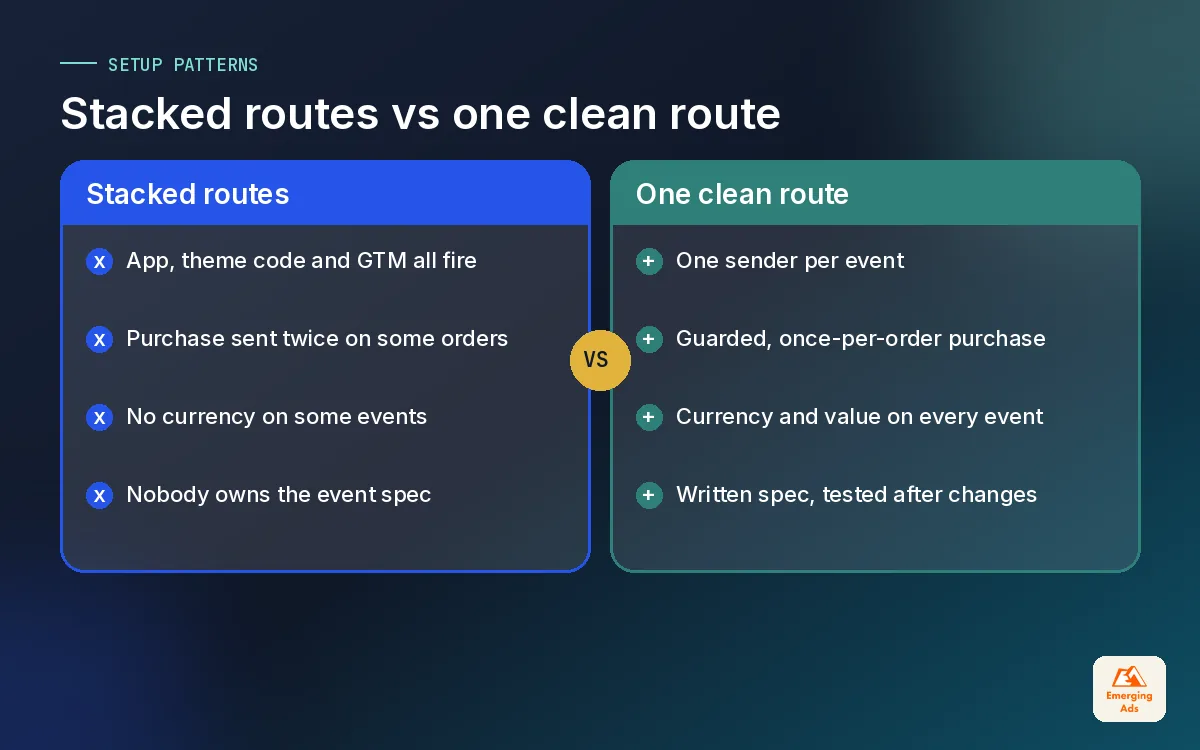
- Two systems sending the same purchase. A native integration and a GTM tag both fire, so revenue doubles on some orders and not others.
- No currency on the event. GA4 receives a value but cannot treat it as revenue, so reports show zero or blanks.
- An items array in the wrong shape. Products turn up as “(not set)” and item reports become useless.
- Checkout on another domain. The purchase is credited to the payment provider or to direct traffic instead of the ad that earned it.
- Refunds ignored. Returns never reach GA4, so product revenue is overstated forever.
If your base property is not solid yet, fix that first. Our GA4 setup guide covers data retention, filters, key events and consent, and it is the foundation everything in this post sits on. You can also have our team handle the full GA4 setup and configuration if you would rather not do it in-house.
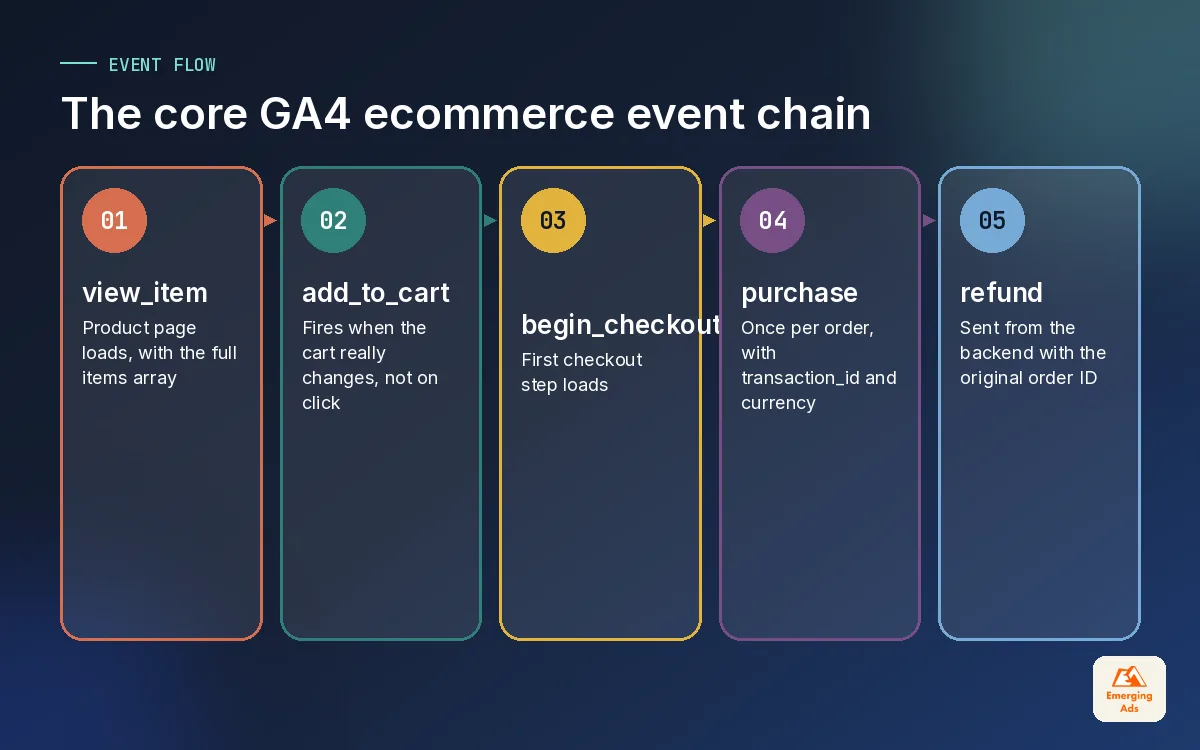
02The GA4 ecommerce events and when each one should fire
GA4 has a set of recommended ecommerce events. Using Google’s names matters, because the built-in monetisation reports and funnel templates only fill in when the event names and parameters match what GA4 expects. Custom names like “product_added” will be collected, but they will not populate the ecommerce reports.
Here is the list we implement on nearly every store, with the moment each one should fire. Not every business needs every event, but you should decide deliberately rather than by accident.
| Event | When it should fire | Priority for most stores |
|---|---|---|
| view_item_list | A collection, category or search results page loads | Medium |
| select_item | A shopper clicks a product from a list | Low to medium |
| view_item | A product detail page loads | High |
| add_to_cart | An item is successfully added, not just the button clicked | High |
| view_cart | The cart page or drawer opens | Medium |
| remove_from_cart | An item is removed from the cart | Low |
| begin_checkout | The first checkout step loads | High |
| add_shipping_info | Shipping method is submitted | Medium |
| add_payment_info | Payment details step is submitted | Medium |
| purchase | The order is confirmed, once per order | Essential |
| refund | A full or partial refund is processed | High |
Fire on success, not on intent
The most common timing error we see is add_to_cart firing on the button click. If the product is out of stock, or the variant was not selected, the click happens but nothing is added. On one fashion store we audited, the add to cart rate looked excellent because size selection errors were being counted as additions. Tie the event to the moment the cart actually changes, usually a successful response from the cart API.
Keep the funnel events in order
GA4 does not force events into sequence, but your analysis assumes it. If begin_checkout fires on some themes and not others, or a one-page checkout skips add_shipping_info, your funnel exploration will show drop-offs that do not exist. Map the real steps of your checkout first, then choose events to match them.
03The items array: where product data lives or dies
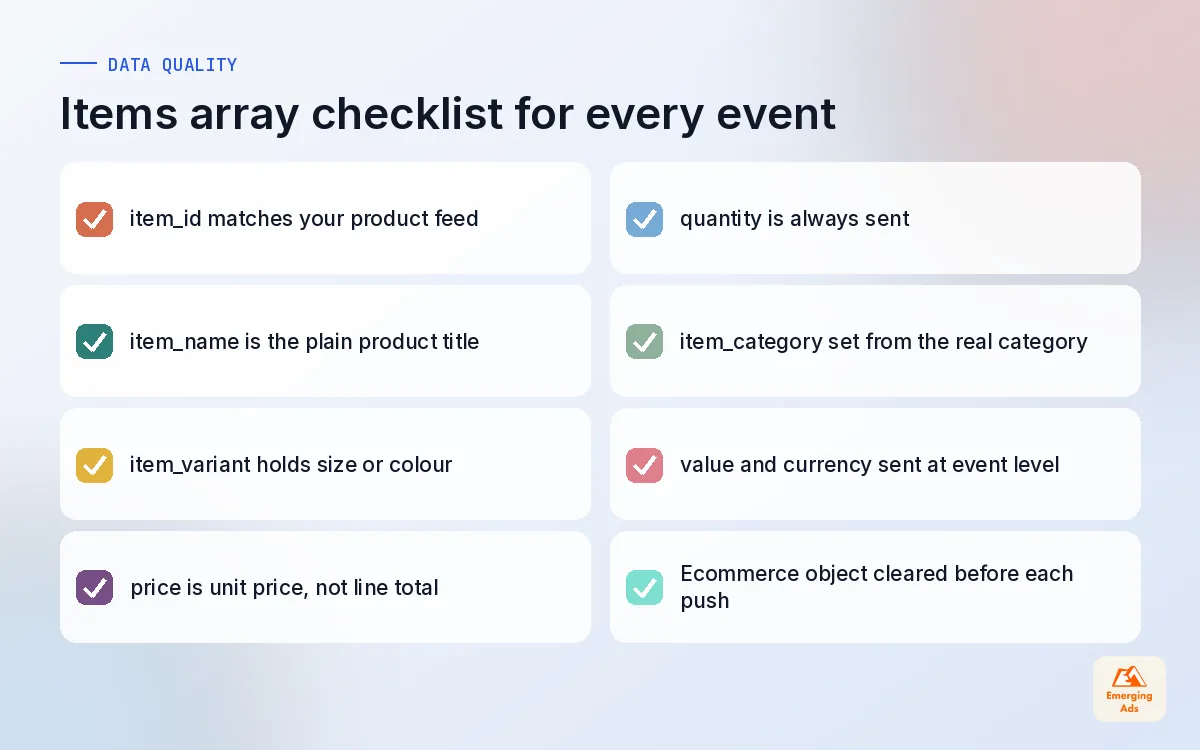
Every ecommerce event in GA4 carries an items array: a list of the products involved, each with its own parameters. This is where most “(not set)” problems begin. If GA4 cannot find item_id or item_name inside the array, product reports fill with blanks no matter how good the rest of your tracking is.
| Parameter | What to send | Common mistake |
|---|---|---|
| item_id | Your SKU or product ID, matching your feed | Sending the variant ID on some events and parent ID on others |
| item_name | The product title shoppers see | Including price or size in the name |
| item_variant | Size, colour or other variant label | Left empty, so variant analysis is impossible |
| item_brand | Brand, if you sell more than one | Hard-coded to your store name on every product |
| item_category | Top-level category, with item_category2 onwards for depth | Using the page URL instead of the category |
| price | Unit price after item discounts | Sending line total, so price times quantity doubles up |
| quantity | Number of units | Missing, which makes GA4 assume one |
| coupon / discount | Item-level promotion details | Only sent at order level, so product margin looks wrong |
Match item_id to your product feed
If you run Google Shopping campaigns, use the same ID format in GA4 as in your Merchant Center feed. It makes product-level analysis across GA4 and Google Ads far easier, and it saves a painful lookup table later. We decide this with clients on day one, because changing it after months of data splits every product report in two.
Event-level value and currency
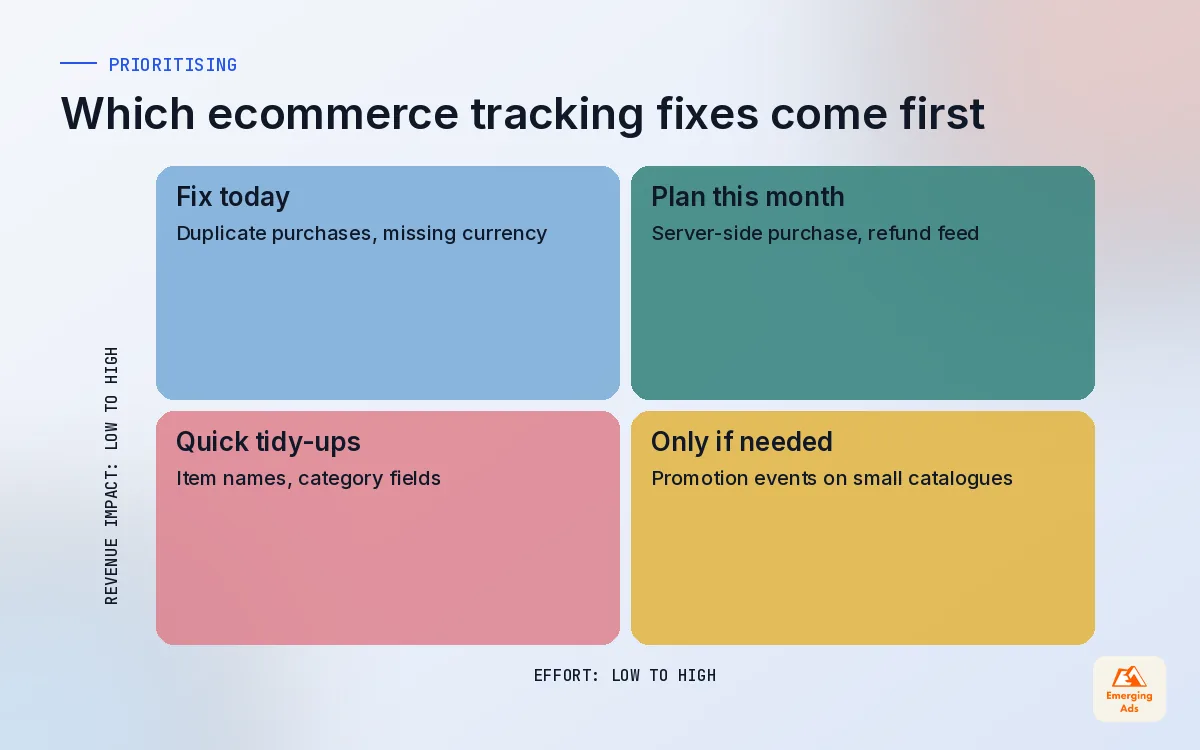
Alongside the items array, purchase and most other ecommerce events should carry value and currency at the event level. Leave out currency and GA4 cannot turn the value into revenue. It is a one-line fix that we still find missing on perhaps one store in every few we audit.
04Stopping duplicate purchases with transaction_id
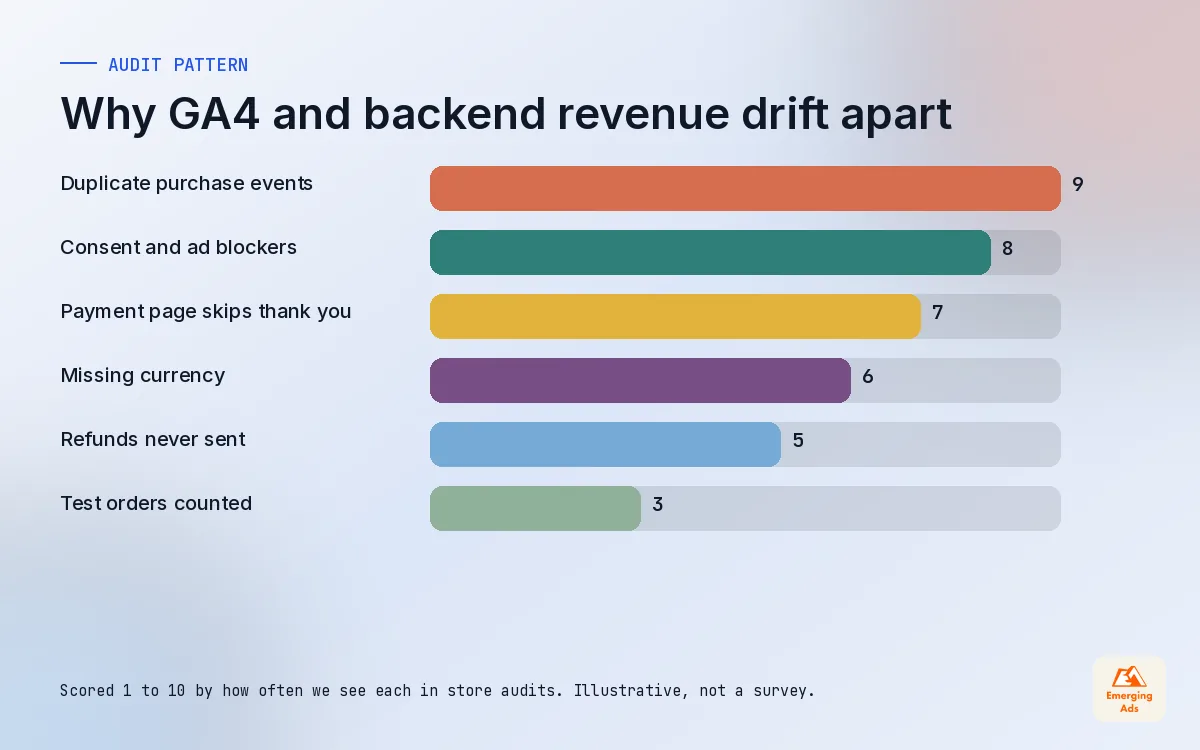
Duplicate purchases are the single biggest reason GA4 revenue runs higher than the backend, and they are sneaky because they rarely affect every order. A shopper reloads the thank you page. They bookmark it. A payment provider redirects twice. A plugin and a GTM tag both fire. Each of these creates a second purchase event.
Every purchase should carry a transaction_id that matches the order number in your backend. GA4 uses it to recognise repeats, but we never rely on that alone. Stop the duplicate at the source, so the numbers are clean in every tool that reads the same event, including your ad platforms.
- Pick one sender. Either the platform’s native integration or your GTM container sends purchase, never both. Check GA4’s realtime view while placing a test order and count the events.
- Guard the thank you page. Fire purchase only once per order, for example by storing the order ID in the browser after the first send and checking it before sending again.
- Use the real order number. Not a session ID, not a random string. You will need it to reconcile against the backend.
- Test the awkward routes. Reload, back button, pay-later methods and wallet payments all behave differently. Test each one.
If you cannot match a GA4 purchase to an order number, you cannot audit it, and a number you cannot audit is just an opinion.
What about server-side purchase events?
Some stores send purchase from the server using the Measurement Protocol or a server-side container, because it survives ad blockers and closed tabs. That can work well, but the event still needs the session context to be attributed properly, and you must not send it from the browser as well. If you go this route, plan it as part of a wider conversion tracking setup so Google Ads and Meta read from the same clean source.
05Refunds, cancellations and the revenue you give back
Most stores never send refunds to GA4. The result is that GA4 revenue creeps above net revenue month after month, and any channel or product with a high return rate looks better than it is. Categories like apparel and footwear are hit hardest, because returns are part of the business model.
The refund event is simple in principle. For a full refund you send the original transaction_id. For a partial refund you also send the items that were returned, with quantities. The practical question is where it comes from, because refunds happen in the back office days later, not in the shopper’s browser.
- Measurement Protocol from the backend. The cleanest option. A small script or automation listens for refunds and sends them to GA4 with the original transaction_id.
- Automation tools. On smaller stores we sometimes wire refunds through Zapier or Make, using the order webhook as the trigger.
- Plugin support. Some WooCommerce integrations handle refunds when the admin processes them. Check it actually works before trusting it.
06GA4 ecommerce tracking on Shopify and WooCommerce
The platform your store runs on decides most of your options. Both of the big ones can produce good GA4 ecommerce tracking, but they get there differently, and the traps are different too.
| Question | Shopify | WooCommerce |
|---|---|---|
| Easiest starting route | Shopify’s own Google channel app | A maintained GA4 or GTM plugin |
| Checkout tracking | Via customer events and custom pixels, which run in a sandbox | Full page control, the checkout is your own site |
| Main risk | App plus theme code plus GTM all sending purchase | Plugin conflicts and caching serving stale data |
| Refunds | Usually needs a backend or automation route | Some plugins send them, many do not |
| Best for control | Custom pixel with a documented event spec | GTM with a proper data layer |
Shopify: pick one route and remove the rest
On Shopify we usually find old theme snippets, a legacy analytics field, an app and a GTM container all doing some tracking. The fix is to choose one route, remove the others, then test every event. For stores that want finer control we build a custom pixel that follows a written event spec. Our Shopify website management team handles this alongside theme and app work, so tracking is not broken by the next theme update.
WooCommerce: watch the plugins and the cache
WooCommerce gives you more freedom and more ways to break things. Two plugins each adding a GA4 tag is common. So is a page cache serving the same data layer to different visitors. Exclude cart and checkout pages from full-page caching, and test with a real order on the live site, not just staging. Our WooCommerce marketing setup service includes this tracking layer.
Whichever platform you use, a clean data layer read by Google Tag Manager gives you the most control. We cover the container side in our Google Tag Manager guide, and our GTM setup service builds it for stores that want it done properly first time.
07Checkouts on other domains and payment gateways
When checkout or payment happens on a different domain, GA4 can lose the thread. The shopper leaves your site for a payment page, comes back to the thank you page, and GA4 starts a new session credited to the payment provider. Your paid social and search campaigns lose the sale, and a payment company shows up as one of your best referral sources.
- Add payment domains to the unwanted referrals list in your GA4 data stream settings, so returning shoppers keep their original source.
- Set up cross-domain measurement when the checkout is on a domain you control, such as a separate checkout subdomain or a hosted funnel builder.
- Check the landing page report for sessions starting on the thank you page. A steady stream of them is a clear sign of a broken handover.
- Keep UTMs off internal links. Tagging your own links resets the session source and creates the same problem from the other direction.
This is also where ecommerce tracking meets the rest of your tracking stack. If you run a headless build or a subscription platform with its own checkout, the answer is usually a server-side purchase event joined to the original client ID. Our GA4 tracking service covers these setups for stores that have outgrown the standard route.
08Validating GA4 revenue against your backend
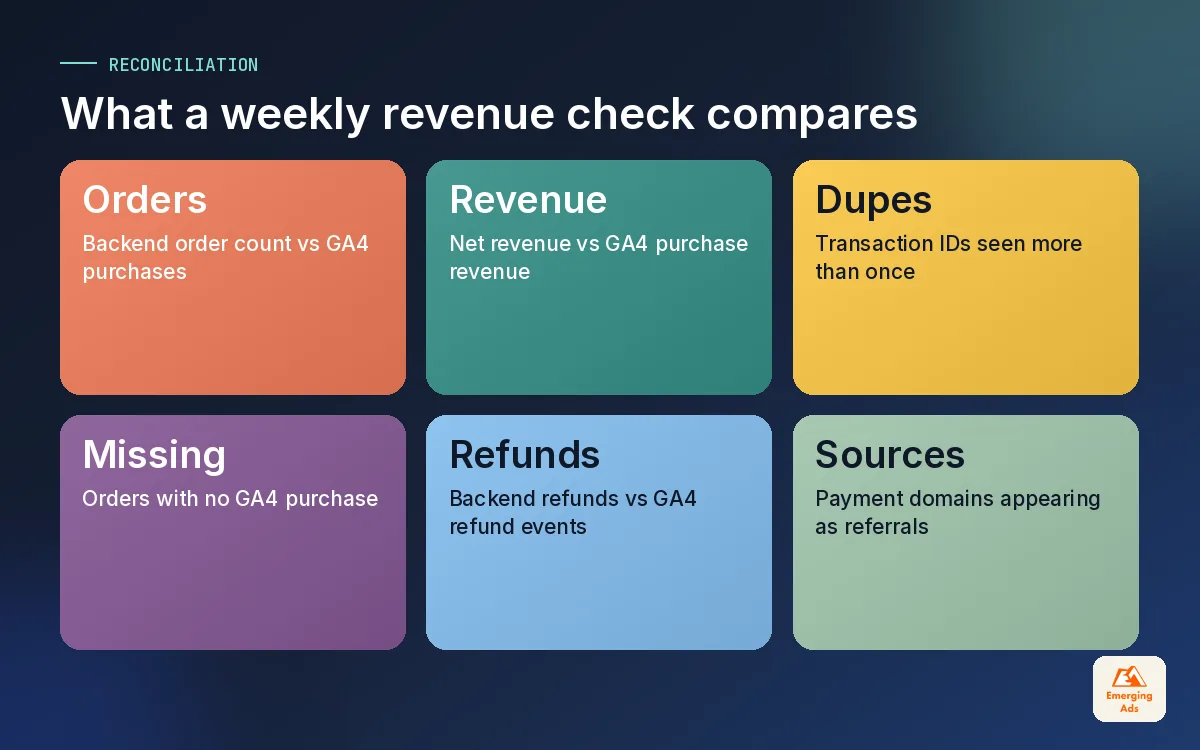
You will never get GA4 to match your store backend to the penny, and you should not try. Ad blockers, consent choices, closed tabs and test orders all create small, honest gaps. What you want is a gap that is small, stable and explained. A gap that changes wildly from week to week means something is broken.
The weekly reconciliation we run
- Export orders from the backend for a full week, with order number, value, currency and date.
- Export GA4 purchases for the same week using transaction_id, revenue and date in an exploration.
- Match on order number. List orders missing from GA4, and GA4 purchases missing from the backend.
- Look for patterns: one payment method, one device, one country, one day. Patterns point to causes.
- Fix, then repeat the next week until the gap is steady.
The GA4 purchases that have no matching order are usually duplicates or test orders. The orders missing from GA4 are usually consent declines, ad blockers or a payment route that skips the thank you page. The first group you can fix. The second you can only shrink, often with server-side events and Consent Mode.
Once the numbers hold steady, pipe them into a report the whole team reads. A Looker Studio dashboard that shows GA4 revenue next to backend revenue, with the gap as its own line, keeps everyone honest. It is part of the regular tracking audit we recommend for every store.
09Reports, explorations and fixing (not set)
Once events are clean, GA4 ecommerce tracking becomes genuinely useful. The standard monetisation reports cover the basics: revenue by item, by channel and over time. The real value sits in explorations, where you can build the views your store actually needs.
- Funnel exploration from view_item to purchase, split by device. Mobile checkout drop-off is the most common finding, and the most profitable to fix.
- Item-level view to cart rate. Products with lots of views and few additions usually have a price, image or stock problem.
- Revenue by first user source. Shows which channels bring customers, not just which ones close the sale.
- Coupon analysis. Which codes drive new customers and which ones just discount people who were buying anyway.
Why products show as (not set)
When item reports fill with “(not set)”, check these in order: is the items array present on the event; is it named exactly items; does each item have item_id or item_name; and is the data layer cleared between events so old items are not reused. In GTM, pushing an empty ecommerce object before each new ecommerce event prevents stale data from leaking across. If revenue is missing but events arrive, check currency first, then the value type: it must be a number, not a text string with a currency symbol.
Clean ecommerce data also improves your ad results, because the same events feed Google Ads and Meta. The stores we run Meta ads for ecommerce on see steadier optimisation once purchase data stops doubling up. If you want the whole stack reviewed, from GA4 to the ad platforms and CRM, you can see all our services here or start from the whyemergingads.com homepage for the rest of this series.
Frequently asked questions
Straight answers to what clients ask us most about ga4 ecommerce tracking.
What is GA4 ecommerce tracking?
Why is my GA4 revenue lower than Shopify?
Why is my GA4 revenue higher than my backend?
Do I need every GA4 ecommerce event?
What is the transaction_id used for?
How do I track refunds in GA4?
Why do my products show as (not set) in GA4?
Should I use Shopify's native integration or GTM for GA4?
How do I stop the payment gateway showing as a referral?
Can GA4 ecommerce data be used in Google Ads?
How often should I check GA4 ecommerce tracking?
Does GA4 revenue never quite match your store backend?
We will compare GA4, your ad platforms and your order data line by line and show you exactly where revenue goes missing. You get a fix list, not a sales pitch.
Book your free audit