Tracking Audit in 2026: A Field Guide From Live Accounts
When GA4, Meta, Google Ads and your backend all report a different number, a tracking audit tells you which one to trust and what to fix first. This is the exact process we run before we touch a single campaign.
Key takeaways
- A tracking audit is a reconciliation exercise first and a tag review second. Start from what the business actually sold, then work backwards to what each tool claims.
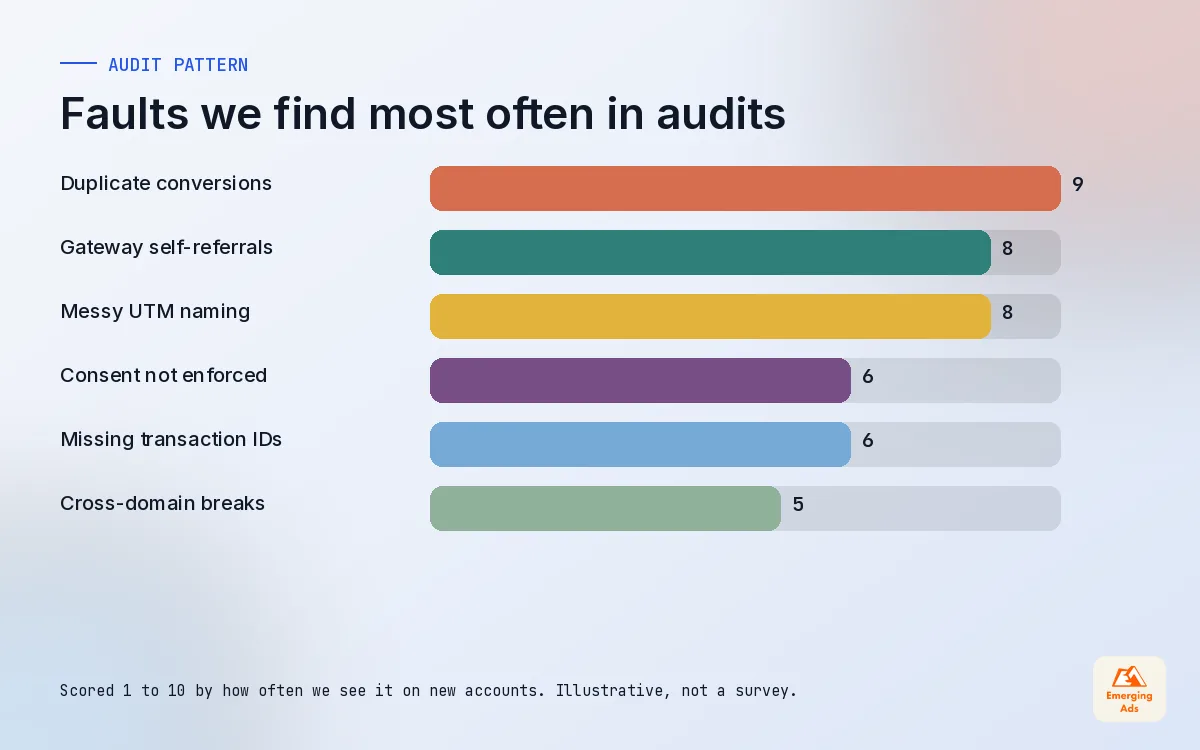
- Most of the damage comes from a short list of faults: duplicate purchase events, missing transaction IDs, payment gateway self-referrals, broken consent defaults and messy UTMs.
- Expect GA4, ad platforms and your backend to disagree. The goal is not identical numbers, it is a gap you can explain and that stays stable week to week.
- Score every finding on impact and effort, then fix the high-impact, low-effort faults inside a fortnight before starting any rebuild.
- Run a full audit at least twice a year and a light check after every site release, theme change, checkout change or new tag.
01What a tracking audit is, and why numbers never match
A tracking audit is a structured check of every tool that records what visitors do on your site and what they buy or submit, compared against the source of truth in your business. That last part matters. We are not auditing tags for the sake of tidy containers. We are asking one blunt question: when the business made 212 sales last week, which tools saw them, which tools saw 260, and which tools saw 140?
Almost every new client arrives with the same complaint. GA4 says one thing, Meta says another, Google Ads says a third, and Shopify or the CRM says something else again. The founder has stopped trusting all of them, and the marketing team spends Monday mornings arguing about screenshots instead of making decisions. A proper website tracking audit ends that argument by explaining each gap, fixing the ones that are faults, and documenting the ones that are simply how the tools work.
Some gaps are normal, some are faults
It helps to separate two kinds of difference early. Structural gaps come from how each platform counts: ad platforms credit conversions to the date of the click or view, use their own attribution windows, and each one claims the sale for itself. GA4 uses its own attribution and loses some users to consent choices and blockers. Those gaps will never close, and they do not need to. Faults are different: a purchase tag firing twice on a thank-you page reload, a missing transaction ID, a form event that fires on every click of the submit button whether the form is valid or not. Faults make the data wrong in ways that quietly steer your budget.
If your tracking has never been set up with care in the first place, an audit will surface more rebuild work than tweaks. That is fine. Our advanced website tracking work often starts exactly here, with an audit that shows the owner where the money is leaking before anyone rewrites a tag.
02Before the tracking audit: gather your sources of truth
The biggest time waster in any audit is chasing access halfway through. Before we open a single container, we ask for read access to everything that records a conversion and one export from the system that actually books the revenue.
- Backend orders or CRM deals for the last 30 to 90 days, with order ID, date, value, and any source or UTM fields the system stores.
- GA4 property with at least Viewer access, plus the data stream settings and the admin screens for key events and data retention.
- Google Tag Manager containers, including any old ones that might still be installed on a forgotten template.
- Ad platforms: Google Ads, Meta Events Manager, and anything else spending money, such as TikTok, LinkedIn or Microsoft Ads.
- Consent platform settings, and a list of regions where you sell.
- A change log, even a rough one: when the theme changed, when checkout moved, when a developer last touched tracking.
Pick the audit window carefully. We like a recent, ordinary fortnight with no big sale, no site migration and no bank holiday. You want boring data, because boring data makes faults stand out.
| Source | What it tells you | Trust it for |
|---|---|---|
| Shopify, WooCommerce or order database | Real orders, refunds and revenue | How many sales happened and what they were worth |
| CRM (HubSpot, Salesforce, Zoho) | Real leads, stages and closed deals | Lead quality and pipeline value |
| GA4 | Sessions, events, on-site behaviour, cross-channel view | Trends, funnels and relative channel performance |
| Google Ads and Meta | Conversions credited to their own ads | Optimising bids and comparing campaigns inside that platform |
| Consent platform logs | Share of visitors granting or denying | Explaining why analytics sees fewer users |
03Step 1 to 3: inventory tags, check GA4, reconcile the numbers
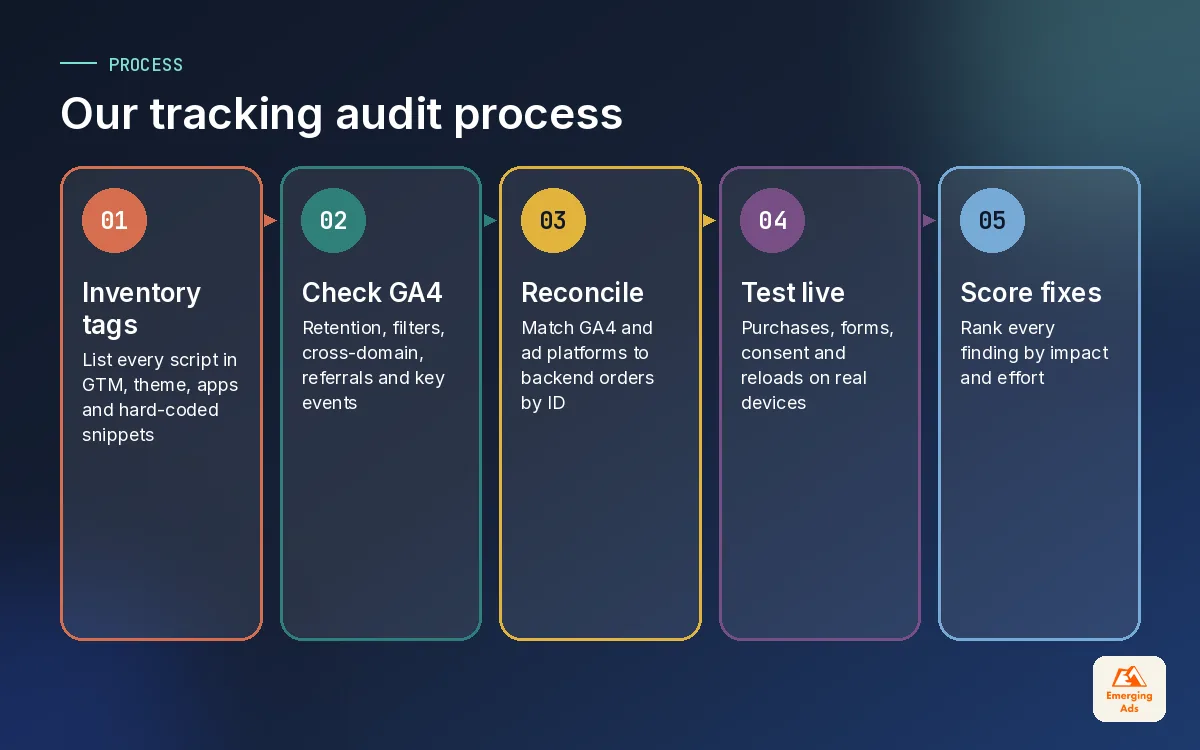
We run every tracking audit in the same order. It keeps us honest and makes the report easy to follow for someone who was not in the room.
Step 1: build a tag inventory
Crawl the site and open the page source on key templates: home, category, product, cart, checkout, thank you, contact and any landing pages used in ads. List every tracking script you find, whether it lives in GTM, in the theme, in an app or plugin, or hard-coded by a developer years ago. On Shopify stores we regularly find the same Meta Pixel installed by the native channel, by an app and by GTM at once. That alone can double reported purchases.
Then open GTM and export the container. Note tags with no clear owner, paused tags, tags firing on All Pages that should not, and triggers built on CSS classes that a theme update could break. If the container needs a proper clean-up afterwards, that is the kind of thing our Google Tag Manager setup team handles and it includes the naming and workspace habits that stop the mess returning.
Step 2: check the GA4 configuration
- Data retention set to 14 months, not the default 2, so explorations can look back far enough.
- Internal traffic and developer traffic filters defined and active.
- Cross-domain settings covering every domain in the path, including booking or checkout subdomains.
- Unwanted referrals listing payment gateways such as PayPal, Stripe checkout pages or Klarna.
- Key events that match real business outcomes, not scroll depth or page views of the contact page.
- Ecommerce events carrying a transaction_id, value, currency and a populated items array.
- Google Ads and Search Console links in place, and BigQuery export switched on if you have the skills to use it.
Our GA4 setup guide walks through each of those settings in detail. If you would rather hand it over, a professional GA4 setup usually takes a few days, not weeks.
Step 3: reconcile against the backend
This is the heart of the audit. Export orders from the backend and purchases from GA4 for the same window and time zone, then match them by transaction ID. You will end up with three buckets: orders GA4 saw, orders GA4 missed, and purchases GA4 recorded that do not exist in the backend. The third bucket is the one that surprises people, and it is almost always duplicates or test orders.
04Step 4 to 6: duplicates, missing events and consent behaviour
Step 4: hunt duplicate and missing events
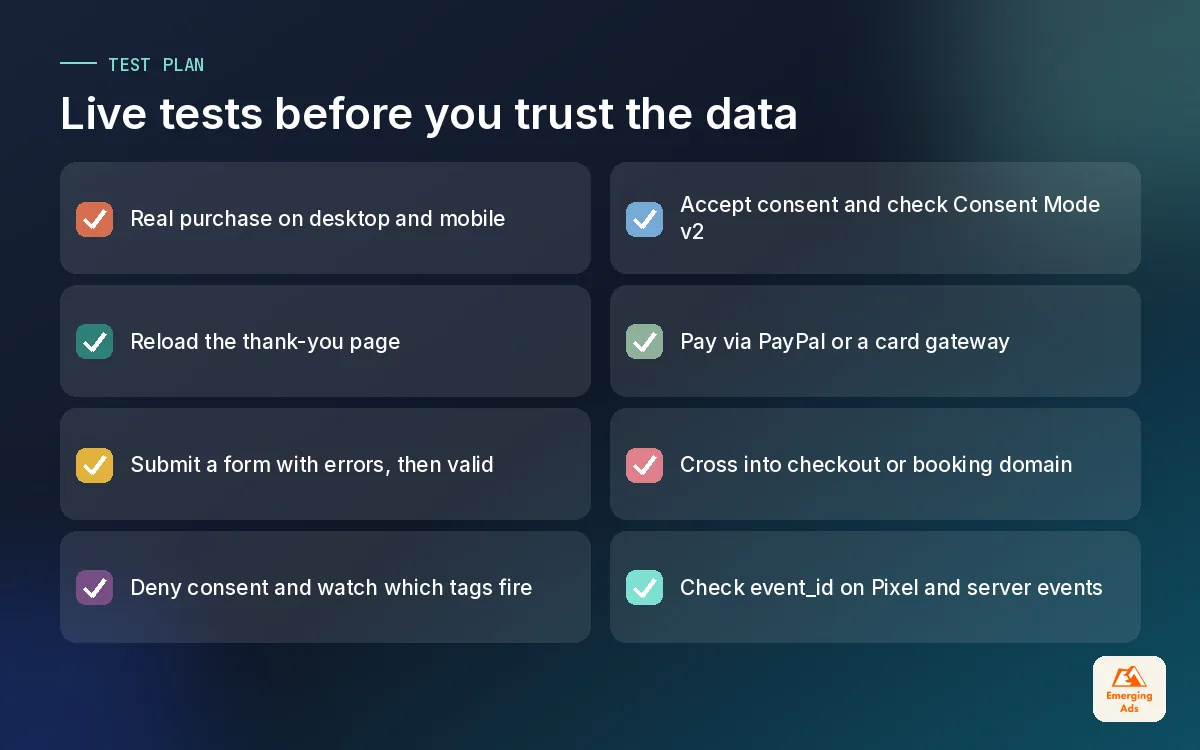
Use GTM preview, the GA4 DebugView and the browser network tab together. Complete a real purchase or form submission on desktop and mobile. Then reload the thank-you page, go back and forward, and open the confirmation email link. Every one of those actions is a chance for a purchase event to fire again. In GA4 a repeated transaction ID is usually deduplicated for purchases, but ad platform tags often are not, which inflates reported conversions and teaches bidding algorithms the wrong lesson.
Missing events are the mirror image. Common culprits we see on audits:
- Thank-you pages that customers never reach because the payment provider redirects to its own confirmation screen.
- Forms built in iframes or third-party widgets that GTM cannot see.
- Single-page checkouts where the URL never changes, so a page view trigger never fires.
- Events that rely on a dataLayer push the developer removed during a redesign.
- Upsell apps that complete the order on a different page to the one your tag watches.
Step 5: test consent behaviour
Load the site in a clean browser from a region where your banner appears. Before you click anything, check which tags fire. Then deny, and check again. Then accept, and check again. With Google Consent Mode v2, the ad_user_data and ad_personalization signals should update alongside analytics_storage and ad_storage. We still find sites where the banner looks perfect and every tag fires regardless of the choice, which is a legal problem as well as a data one. We also find the opposite: consent set to denied by default everywhere in the world, quietly throwing away measurement in regions where it was never required.
Step 6: compare the ad platforms
Open Meta Events Manager and Google Ads conversion settings. Check which actions are marked as primary for bidding, their counting method, the attribution window and whether enhanced conversions or the Conversions API are active. If Meta runs both Pixel and server events, check that the same event_id is sent from both so Meta can deduplicate them. Our Meta Conversions API guide explains that in full, and our Meta Pixel tracking setup service fixes it when it has drifted.
05Step 7 to 8: UTM hygiene, cross-domain and payment gateway referrals
Once the conversions are correct, the next question is whether they are credited to the right source. This is where most attribution arguments actually begin, long before anyone debates models.
Step 7: UTM hygiene
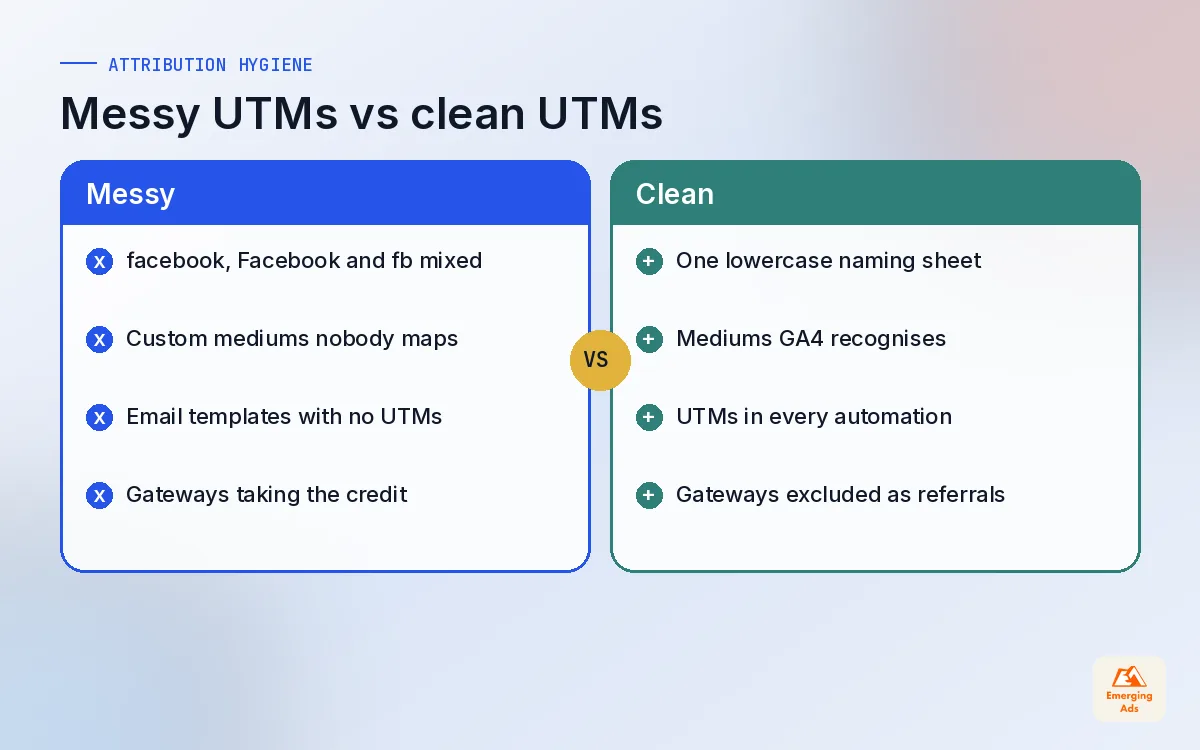
Pull the session source and medium report from GA4 for the audit window and look for near-duplicates: facebook, Facebook, fb and facebook.com all describing the same channel. Look for mediums GA4 does not recognise, which push traffic into Unassigned. Check that email platforms, SMS tools, influencers and QR codes all follow one naming convention. A shared UTM sheet with fixed lowercase values fixes most of this within a week.
| Symptom in GA4 | Likely cause | Fix |
|---|---|---|
| High Unassigned traffic | Non-standard utm_medium values | Use values GA4 channel groups recognise, such as cpc, email, paid_social |
| PayPal or Stripe as a top referrer | Gateway missing from unwanted referrals | Add gateway domains to the referral exclusion list |
| Self-referrals from your own domain | Cross-domain not configured | Add every owned domain to the data stream settings |
| Paid social showing as organic | Missing or stripped UTMs on ads | Apply URL parameters at ad or campaign level and test live links |
| Direct traffic spikes after emails | Links without UTMs in templates | Audit email templates and automations, not only campaigns |
Step 8: cross-domain and gateway checks
Walk through the full customer path yourself with the GA4 debug extension open. Start on an ad landing page, move to the shop, into a booking tool or checkout on another domain, through payment and back. The session should keep the same source all the way. If it breaks at the payment step, you will see the gateway take the credit for your sale in GA4, and your paid channels will look weaker than they are. We cover how that skews channel decisions in our marketing attribution guide.
06Scoring and prioritising what the tracking audit finds
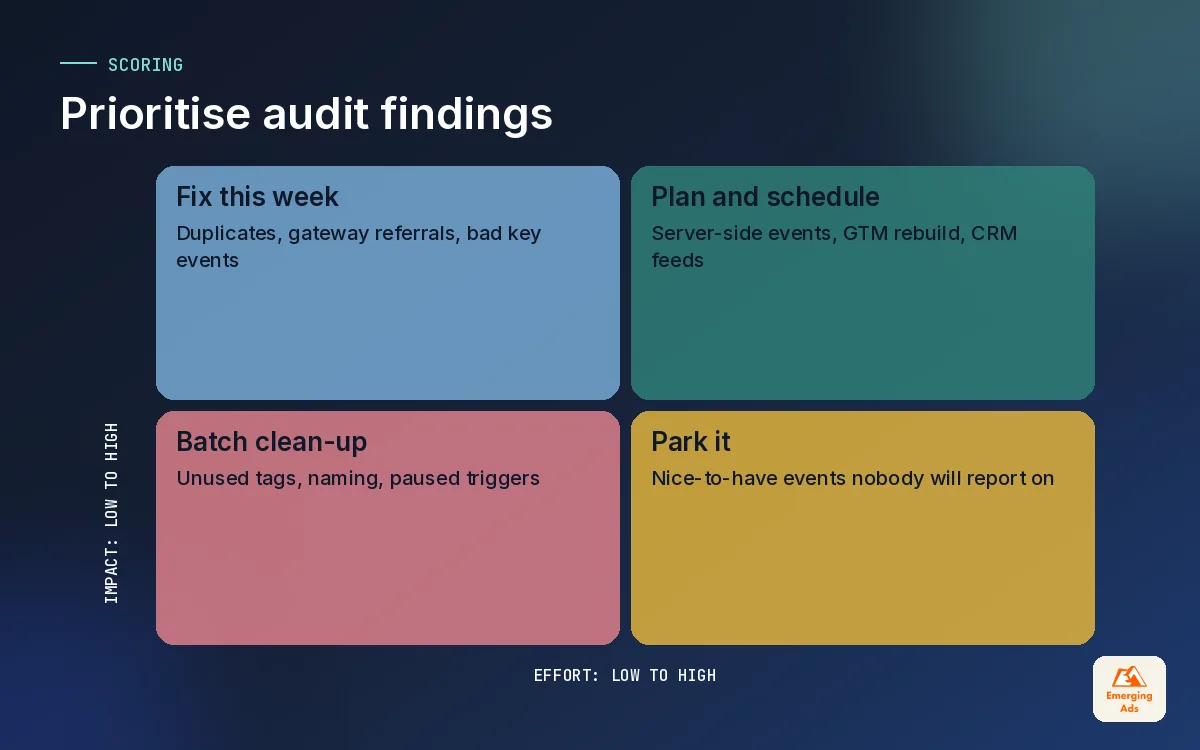
A tracking audit that ends with a 90-row spreadsheet and no order of work is only half an audit. We score every finding on two axes: how much it distorts decisions or bidding, and how long it takes to fix. Then we sort.
| Finding | Impact | Effort | Priority |
|---|---|---|---|
| Purchase tag firing twice on reload | High | Low | Fix this week |
| Consent defaults ignored by tags | High | Medium | Fix this week |
| Payment gateway in referrals | Medium | Low | Fix this week |
| Messy UTM naming across tools | Medium | Medium | Fix this month |
| No server-side events for Meta | Medium | High | Plan and schedule |
| Unused legacy tags in GTM | Low | Low | Batch into clean-up |
The table is an example of the format, not a verdict on your site. On a lead-generation account the list looks different: form spam, offline stages not passed back, and call conversions missing entirely. On a Shopify store it tends to be app conflicts and checkout extensibility changes.
Fix what lies to your bidding algorithms first. Everything else is housekeeping.
Once the high-priority faults are fixed, give the data two to four weeks to settle before you judge campaign performance again. Smart bidding in particular needs time to relearn from clean signals.
07How often to run a tracking audit (and what to check in between)
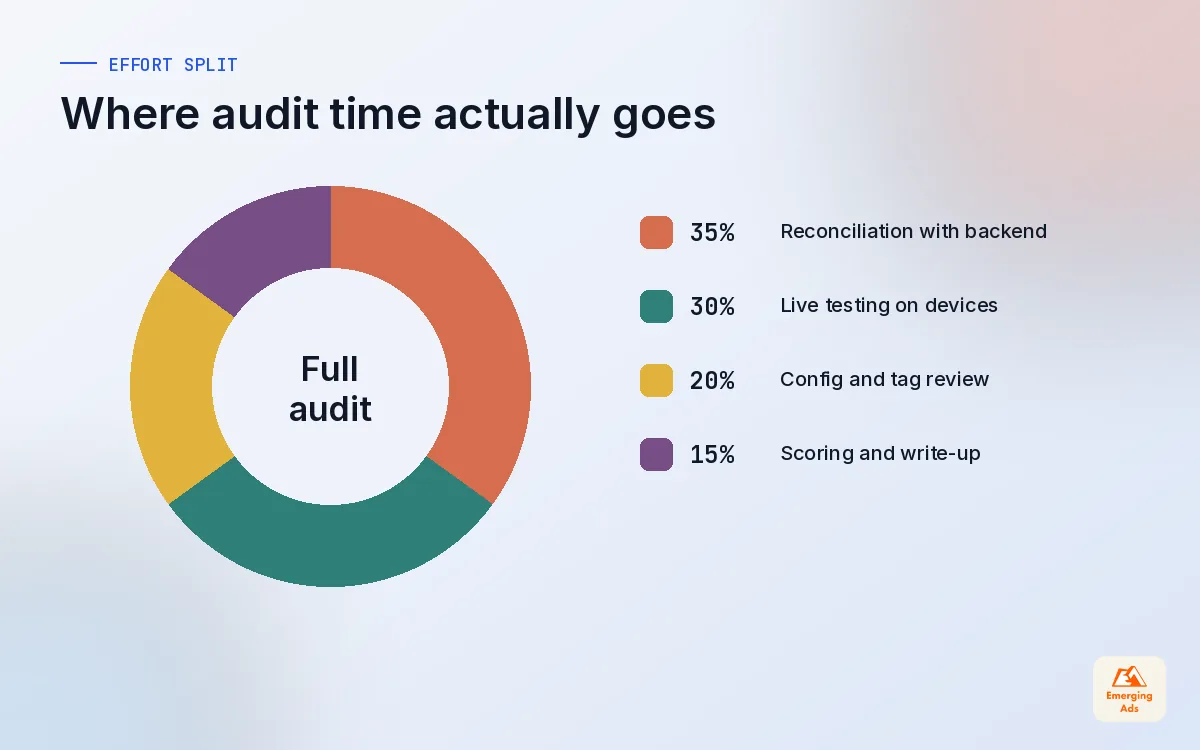
Tracking decays. Themes change, apps update, developers ship, marketers add a new platform on a Friday afternoon. We recommend a full tracking audit at least twice a year and a light check after every change that touches templates, checkout or forms.
| Trigger | Audit depth | Minimum checks |
|---|---|---|
| Every site release | Light | Test purchase or lead, check tags fire once, confirm consent still works |
| New ad platform or tag | Light | Consent settings, trigger scope, dedup with existing tags |
| Theme or checkout change | Medium | Full purchase path, cross-domain, gateway referrals, data layer |
| Twice a year | Full | Everything in this guide, plus reconciliation against the backend |
| Unexplained drop or spike | Targeted | Compare by device, browser and region to isolate the fault |
In between audits, a simple weekly reconciliation chart helps. A Looker Studio dashboard that plots backend orders beside GA4 purchases and ad platform conversions makes drift obvious long before anyone notices a strange month. We keep it to one page, with a line for each source and a note beside any week where the gap moves.
08Running it yourself vs bringing in a specialist
A capable in-house marketer can run most of this checklist. The steps are not secret. What slows people down is knowing which gaps are normal, where the usual faults hide on each platform, and how to prove a fix worked. We have seen founders spend a month chasing a revenue gap that turned out to be a currency setting.
If your ads spend is meaningful, the audit often pays for itself inside a quarter simply by stopping inflated conversions from steering bids. Paired with a Google Ads audit or a Facebook ads audit, it also shows whether weak campaigns are genuinely weak or just badly measured. When the faults are fixed, our conversion tracking setup service rebuilds the parts that were beyond repair.
You can see how tracking fits alongside paid media, CRM and reporting on our full list of EmergingAds services, or head back to the whyemergingads.com homepage for the rest of our tracking and analytics guides.
Frequently asked questions
Straight answers to what clients ask us most about tracking audit.
What is a tracking audit?
How long does a website tracking audit take?
Why do GA4 and Shopify show different revenue?
Why does Meta report more conversions than my backend?
What should a GA4 audit checklist include?
How often should I audit my tracking?
Can I audit my conversion tracking myself?
What is the most common tracking fault you find?
Does a tracking audit check cookie consent?
What happens after a tracking audit?
Is server-side tracking part of a tracking audit?
Want a second pair of eyes on your tracking?
We will audit your tags, GA4 property and ad platform conversions against your real orders or leads, then hand you a ranked list of fixes. Plain English, no jargon dump.
Book your free audit